
Agent

One agent. Every customer moment.

The customer-facing side of Unless — one AI Customer Agent across acquisition, retention, expansion, and support, with the Help Center it auto-generates as its public face. Browse a moment, or see the full overview.

Acquisition

Qualify, convert, educate. 24/7 on your marketing site.

Retention

See churn coming. Act before it does, inside the customer's product.

Expansion

Catch upsell signals early. Route them to the right owner.

Support

Resolve, co-pilot, learn — across every helpdesk and channel.

Engine

The platform underneath.

The back-of-house side of Unless — a Living Knowledge library that maintains itself, plus the Train → Test → Deploy → Analyze loop that keeps every Customer Agent sharper after every conversation. See how the engine compounds.

Train

Always current. Always ready. Living Knowledge + Living Context.

Test

Before a customer sees it. Preview, simulate, audit.

Deploy

One agent. The whole journey. Memory across all of it.

Analyze

Performance, value, AI maturity. All visible. All live.

Trust

Built for the EU from day one

The architecture that lets your DPO, security, and procurement teams sign off without slowing your team down. Browse the page, or jump straight to a section.

Privacy Vault

Twelve numbered measures keep sensitive identifiers home.

Compliance posture

Three pillars — sovereignty, AI Act readiness, sector readiness.

Architecture

Five EU-resident layers — touchpoints to LLM constellation.

Frameworks

EU AI Act, GDPR, DORA, OWASP — built into the platform, not bolted on.

Customers

Trusted by leaders

How regulated-Europe brands — from Visma to Onguard — turned customer success into a revenue engine with Unless.

Visma Enterprise AS

Norway's leading ERP — modernized self-service with Unless.

Helping patients

Patient self-service surged within weeks of deploying Unless.

Enhancing credit software

Financial service Onguard powers their support operations with Unless.

Ticket deflection at scale

Meet Sally, Kontek’s AI support colleague in regulated finance.

Resources

Search resources and support articles

Documentation, articles, and recipes for getting the most out of your Unless deployment — plus a help desk when you need a human.

Help center

Get-started guides and advanced playbooks for the platform.

Security and compliance

Privacy measures, security by design, and compliance guidelines.

Developer documentation

Find reference documentation for the javascript API.

The Unless cookbook

Bite-sized examples for every stage of the customer lifecycle.

Pricing

Pay per outcome. You choose.

Two equal-weight plans, both built around outcomes. Browse the page, or jump straight to a section.

The two plans

Flex (€0.99 per outcome) or Fixed (€1,999/month). Equal weight.

What's included

Full platform on both — Living Knowledge, Memory, Context.

Flex modules

Productized add-ons. À la carte on Flex, bundled into Fixed.

Frequently asked

What counts as an outcome, fair use, and switching mid-year.

Article

How to add an AI starter button

Find out how to add a starter button to your website or dashboard for users to interact with your AI.

Updated 29 January 2025

You’ve trained and configured your AI, tested it internally, added control questions to the quality control center, and improved the scores. After all that work, you are ready to set the AI live for customers on your website or users in a product dashboard.

Keep in mind: Before you can add a component, you first have to install the Unless script to the head section of your website. You can find the script along with install instructions by navigating to the Account tab of your Unless dashboard and clicking the Get Unless snippet button.
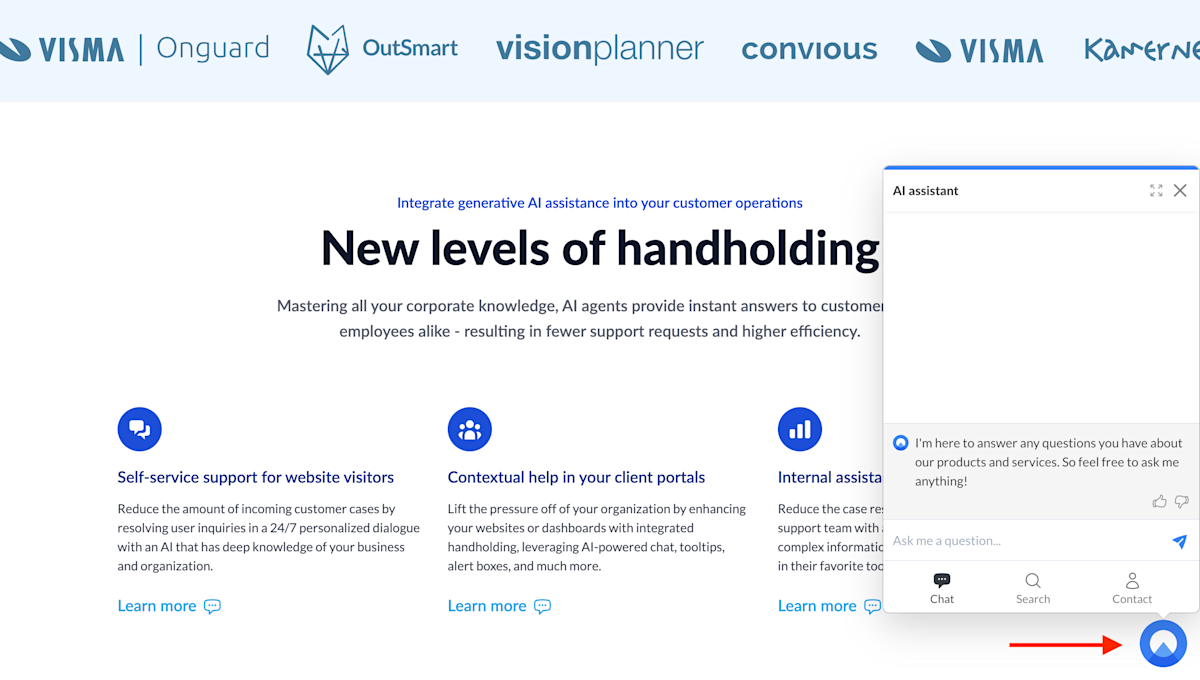
Unless homepage with the floating button component

You’ve got many components to choose from but the one that first comes to mind is of course the AI starter button that we’re all used to seeing, often floating at the bottom right corner of our screens ready to be opened up with a click. Above is a screenshot from the Unless homepage with our own floating AI starter button.

Select your AI starter button of choice

Start by navigating to the Conversation starters tab and click Create component. Right at the top of the screen you will find the AI starter button templates to choose from. You can click Preview to get a better look at each one.

The top three templates are inline meaning they can be inserted anywhere on a page. The remaining three are overlays that show on top of the page, hence the term floating.
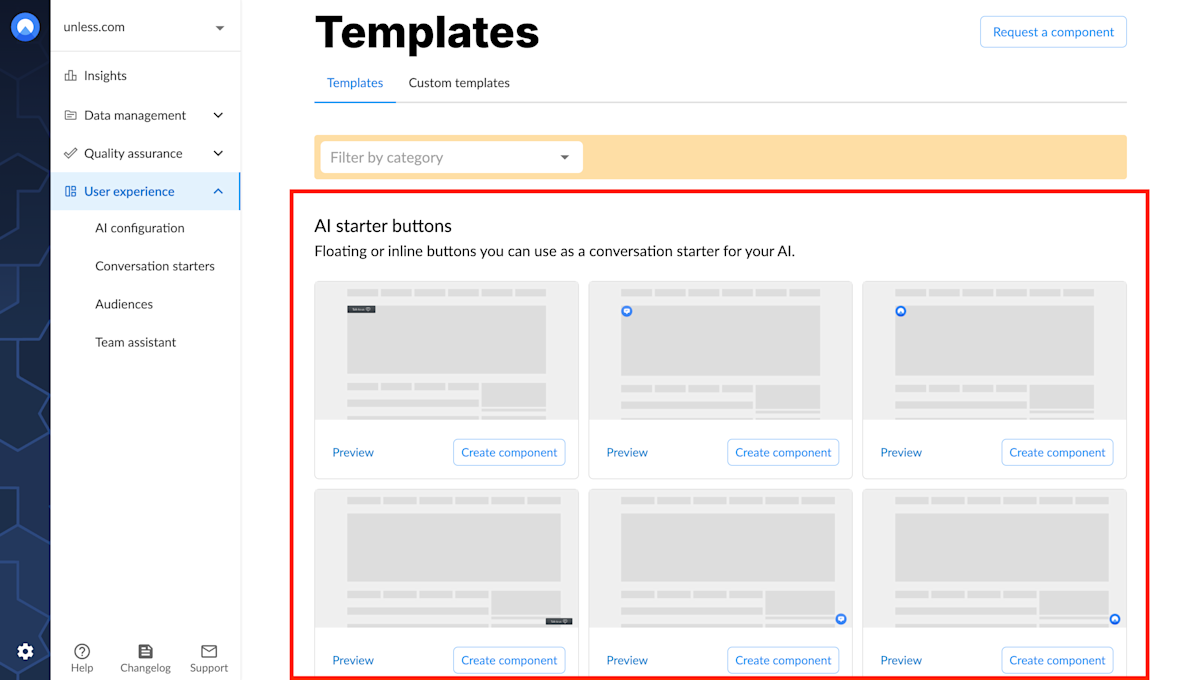
AI starter button templates to choose from

The most popular option is the ones on the right where the circle is an image and you can replace it with an image of your choosing, most likely your company logo. Alternatively, you can opt for an icon (the templates in the middle) and choose one from a long list of icon options or an icon along with text (eg. Talk to us).

Once you've made your choice, click Create component which will bring you to the Settings page of your component.

Define the component settings

The settings page for your AI conversation starter button is similar to that of any other component. You have to give it a name, define the pages it should show on, and the audience it is meant for. In the case of the AI starter button, you probably want to add it to all pages and have it be available to everyone.
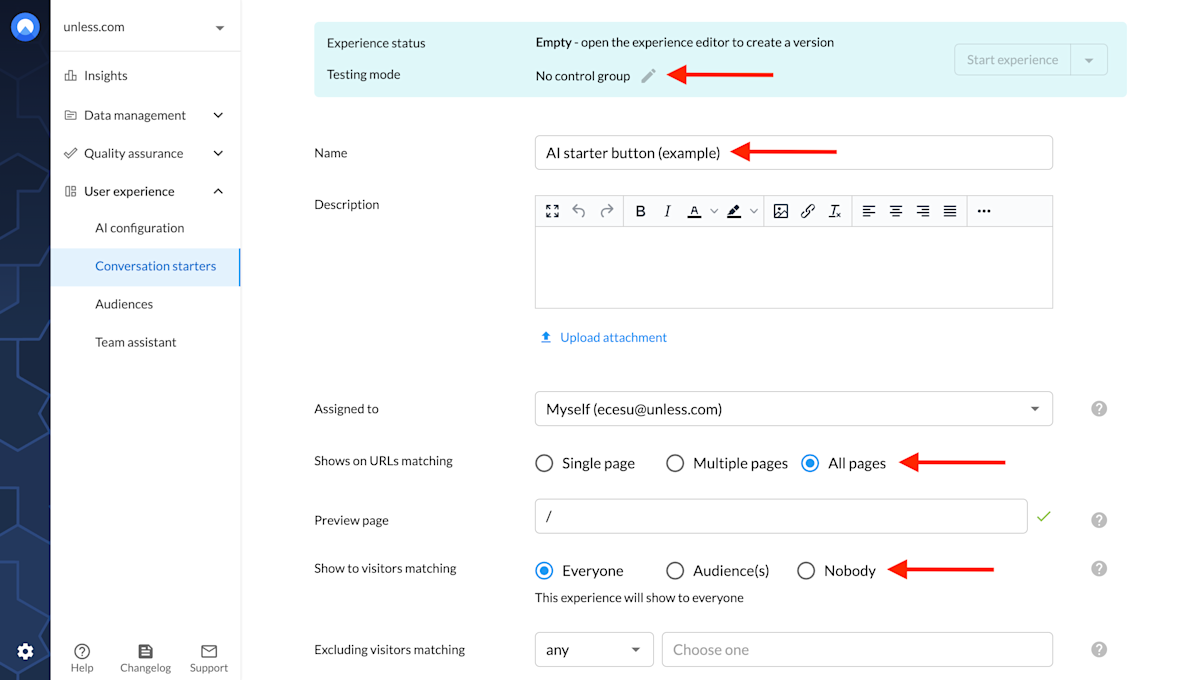
Component settings for the AI starter button

If you want to show it to only a certain audience, or only on specific pages, you can also customize that here. For example, maybe you want to add the button to all help center pages, only to dashboard pages, or to pages relevant to a specific topic. If using all pages or multiple pages, define a preview page you will use for editing and reviewing your component.

There are advanced settings available as well though these are probably not relevant in the case of this particular component. Similarly, in most cases, you will not need the testing tab either and can leave it as no control group which is the default setting.

Scroll down to click save and you are ready to open the component editor.

Edit the component

The most important field here is the prompt and the name of the conversation (which you'll see reflected in the Conversations tab and your users will see during their interaction). Optionally, you can select a topic here as well.
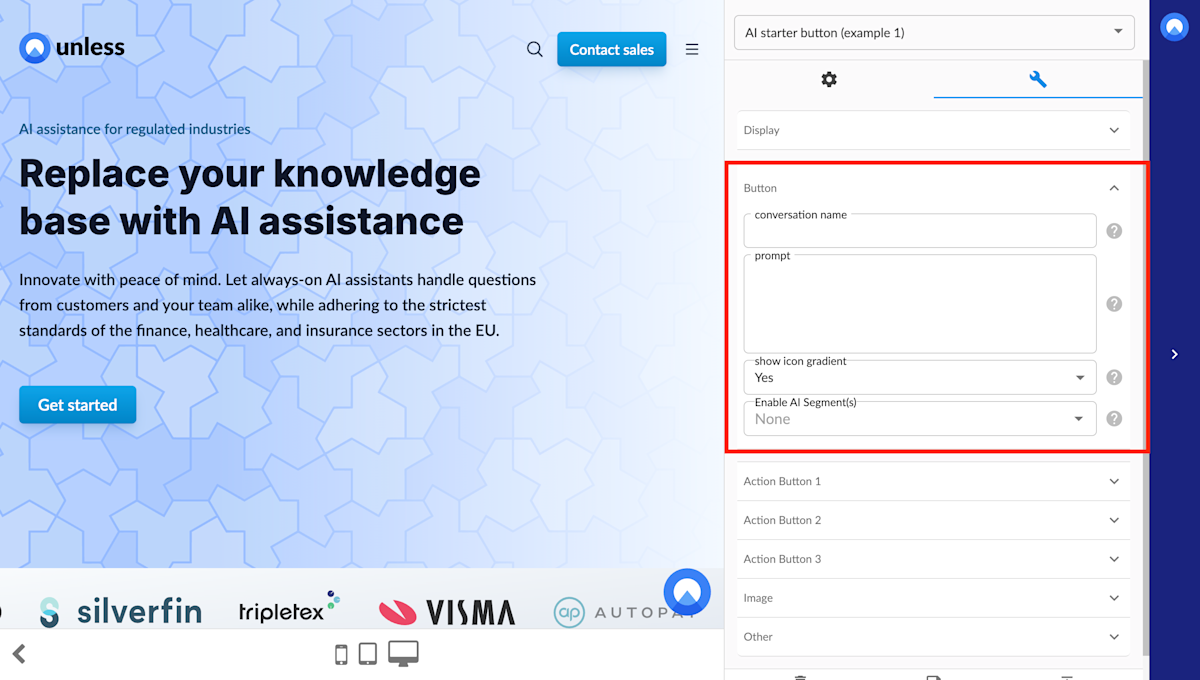
Component editor for the AI starter button

If you opted for the component with the image, you can use the Image tab in the editor to enter an image URL or upload a file directly. If you choose the button with an icon or icon and text, you will have additional fields to customize these as well.
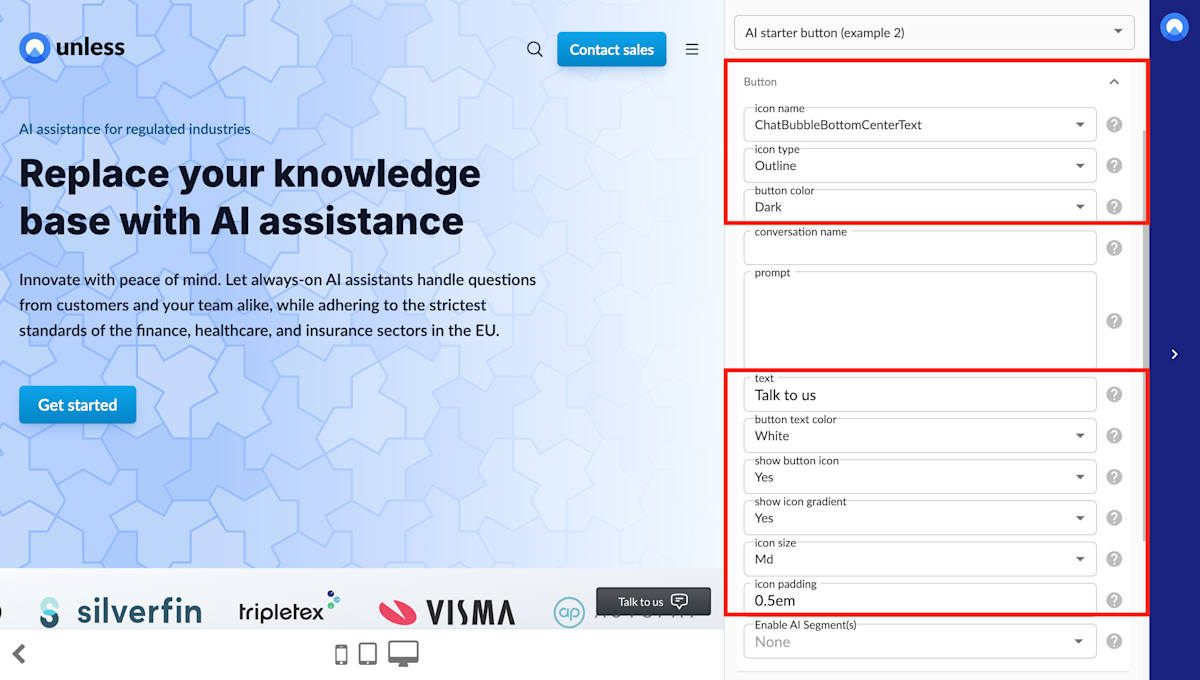
Component editor for the AI starter button with an icon and text

Once you've adjusted the fields to fit your needs, you can click save and create version and publish. If you are ready to go live, make sure you go back to the previous settings page and click Start experience. You can also use the eye icon to preview the component you've created.

Related content

We're here to help

Quick responses if you have an issue. Feel free to ask us anything — or ask our conversational AI a question.