
Agent

One agent. Every customer moment.

The customer-facing side of Unless — one AI Customer Agent across acquisition, retention, expansion, and support, with the Help Center it auto-generates as its public face. Browse a moment, or see the full overview.

Acquisition

Qualify, convert, educate. 24/7 on your marketing site.

Retention

See churn coming. Act before it does, inside the customer's product.

Expansion

Catch upsell signals early. Route them to the right owner.

Support

Resolve, co-pilot, learn — across every helpdesk and channel.

Engine

The platform underneath.

The back-of-house side of Unless — a Living Knowledge library that maintains itself, plus the Train → Test → Deploy → Analyze loop that keeps every Customer Agent sharper after every conversation. See how the engine compounds.

Train

Always current. Always ready. Living Knowledge + Living Context.

Test

Before a customer sees it. Preview, simulate, audit.

Deploy

One agent. The whole journey. Memory across all of it.

Analyze

Performance, value, AI maturity. All visible. All live.

Trust

Built for the EU from day one

The architecture that lets your DPO, security, and procurement teams sign off without slowing your team down. Browse the page, or jump straight to a section.

Privacy Vault

Twelve numbered measures keep sensitive identifiers home.

Compliance posture

Three pillars — sovereignty, AI Act readiness, sector readiness.

Architecture

Five EU-resident layers — touchpoints to LLM constellation.

Frameworks

EU AI Act, GDPR, DORA, OWASP — built into the platform, not bolted on.

Customers

Trusted by leaders

How regulated-Europe brands — from Visma to Onguard — turned customer success into a revenue engine with Unless.

Visma Enterprise AS

Norway's leading ERP — modernized self-service with Unless.

Helping patients

Patient self-service surged within weeks of deploying Unless.

Enhancing credit software

Financial service Onguard powers their support operations with Unless.

Ticket deflection at scale

Meet Sally, Kontek’s AI support colleague in regulated finance.

Resources

Search resources and support articles

Documentation, articles, and recipes for getting the most out of your Unless deployment — plus a help desk when you need a human.

Help center

Get-started guides and advanced playbooks for the platform.

Security and compliance

Privacy measures, security by design, and compliance guidelines.

Developer documentation

Find reference documentation for the javascript API.

The Unless cookbook

Bite-sized examples for every stage of the customer lifecycle.

Pricing

Pay per outcome. You choose.

Two equal-weight plans, both built around outcomes. Browse the page, or jump straight to a section.

The two plans

Flex (€0.99 per outcome) or Fixed (€1,999/month). Equal weight.

What's included

Full platform on both — Living Knowledge, Memory, Context.

Flex modules

Productized add-ons. À la carte on Flex, bundled into Fixed.

Frequently asked

What counts as an outcome, fair use, and switching mid-year.

Article

How to add topics to training data

Organizing your training sources into topics helps avoid conflicts. Answers will be generated using the sources of one topic at a time.

Updated 25 February 2025

When adding training data, you often start with global training sources. These sources will then be used to answer questions across the board. However, it's possible that you also want to make use of topics when uploading training sources that relate to different products, internal vs. external use cases, etc.
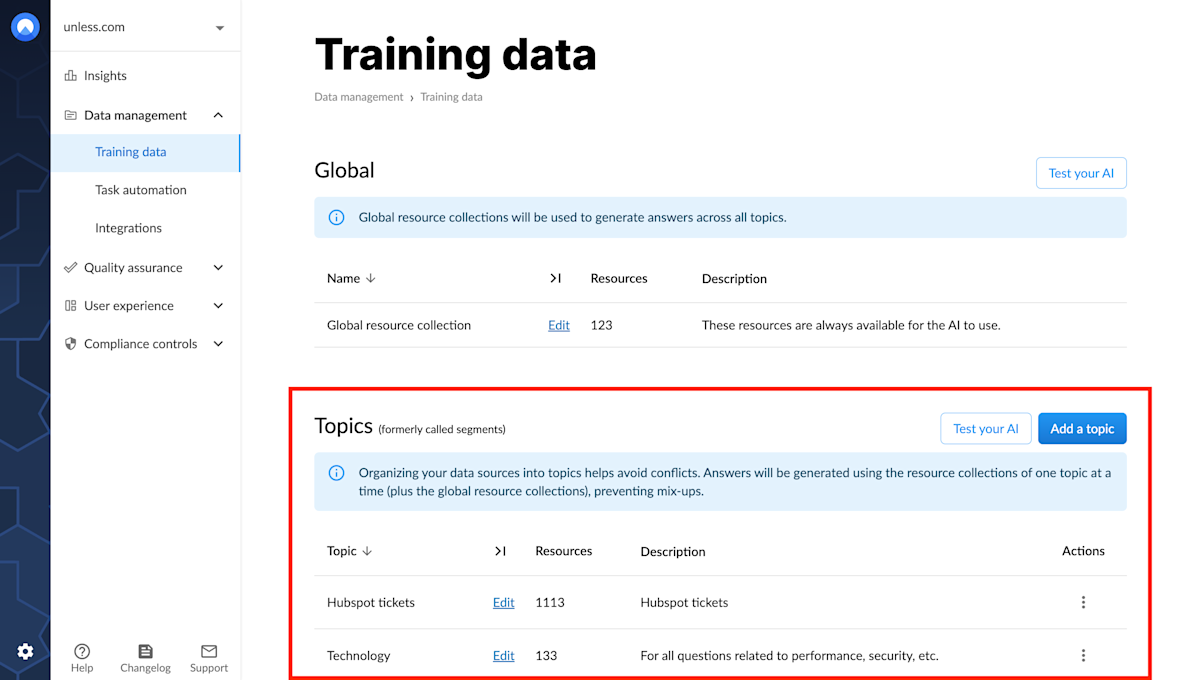
Training data: Topics

When to use topics

Let’s take a look at some use cases. You might be working at a company with three completely different products. Uploading the related training sources all in one place could result in conflicting information. For example, if the products have different pricing structures or if one offers a free trial but the other two don’t, etc.

It can also be important to segment different users if they are supposed to have access to different (levels of) information. Examples could include your customer support team using the AI to answer support tickets vs. the end customers using the AI directly to receive answers to their questions. If you are a software service provider in the education sector, the information and support you provide to teachers and students will vary greatly.

Take note: In each topic, the AI will also search in the global training sources.

Adding a topic

Once at the Training data tab of the AI zone, you can click the Add a topic button and start by giving your topic a name and adding a description. You can then set whether you want the sources in this topic to be used to generate answers and in related content searches. You can also allow a topic to search in an additional topic. This is often meant for historical tickets, to be used by the customer support team inside the team assistant.
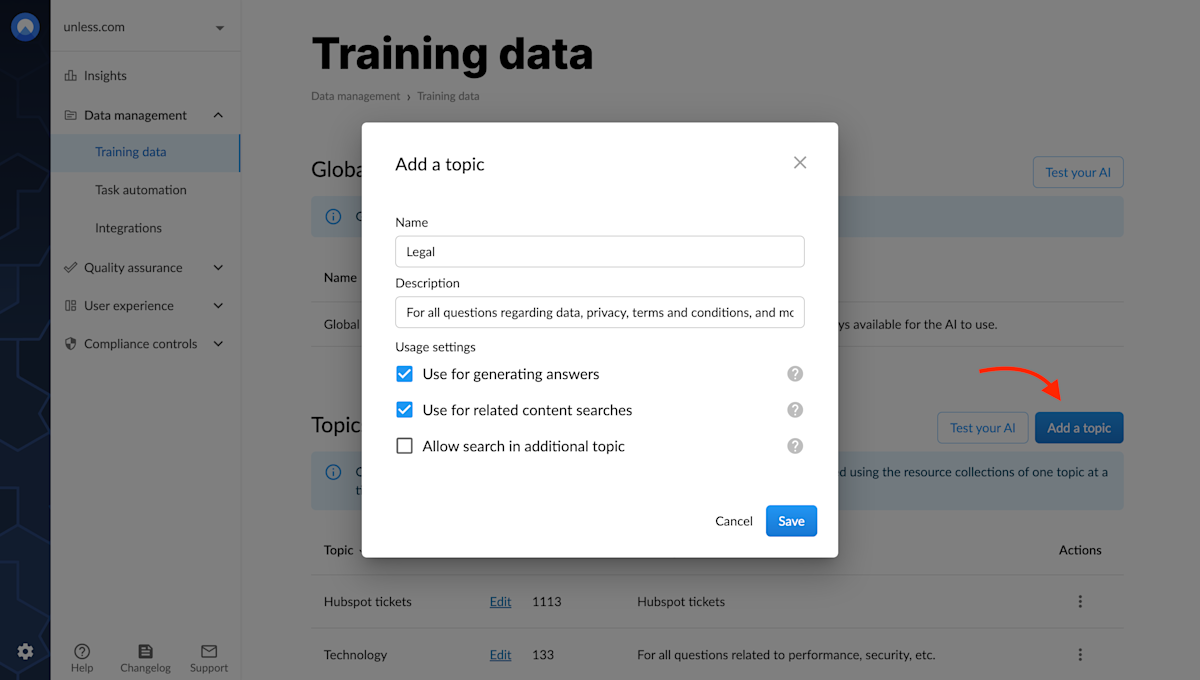
Adding a new topic

Once you’ve added a topic, you should be able to see it listed. Then, you can click Edit for that particular topic and add training sources as you normally would. Having added training data to your topic, it's time to test your AI on this topic.
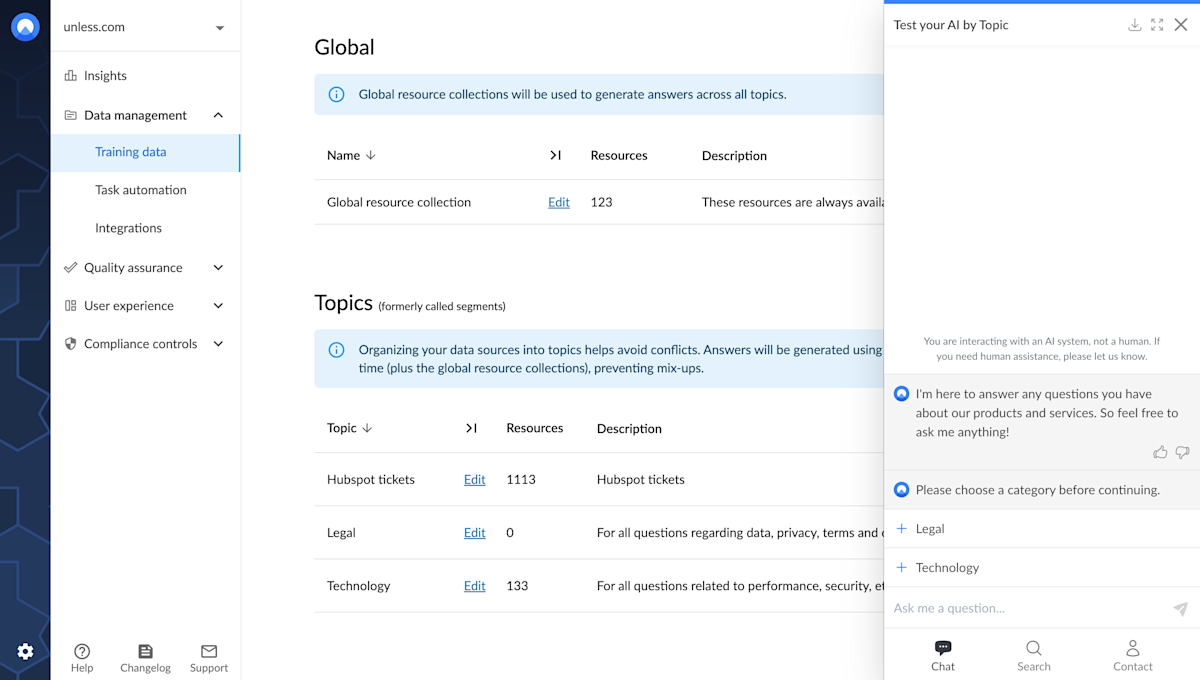
Testing your AI by topic

On the training data page, click the test your AI button in the topics section and select the topic you want to test the AI on. Keep in mind, in each topic, the AI will also search the global training sources.

Enabling a topic

Now that you have a topic (or more), the next step is to enable them for the components you want. When you are in the editor for an component, you can scroll down to the Other tab where you can switch on Expert mode.

This will enable more fields across the different tabs of the editor. You can then click open the PrimaryButton tab where you should see the Enable AI segment(s) dropdown. Here, the default will be None, meaning the global training sources will be used. However, you have the option to select one or more topics from the dropdown menu.
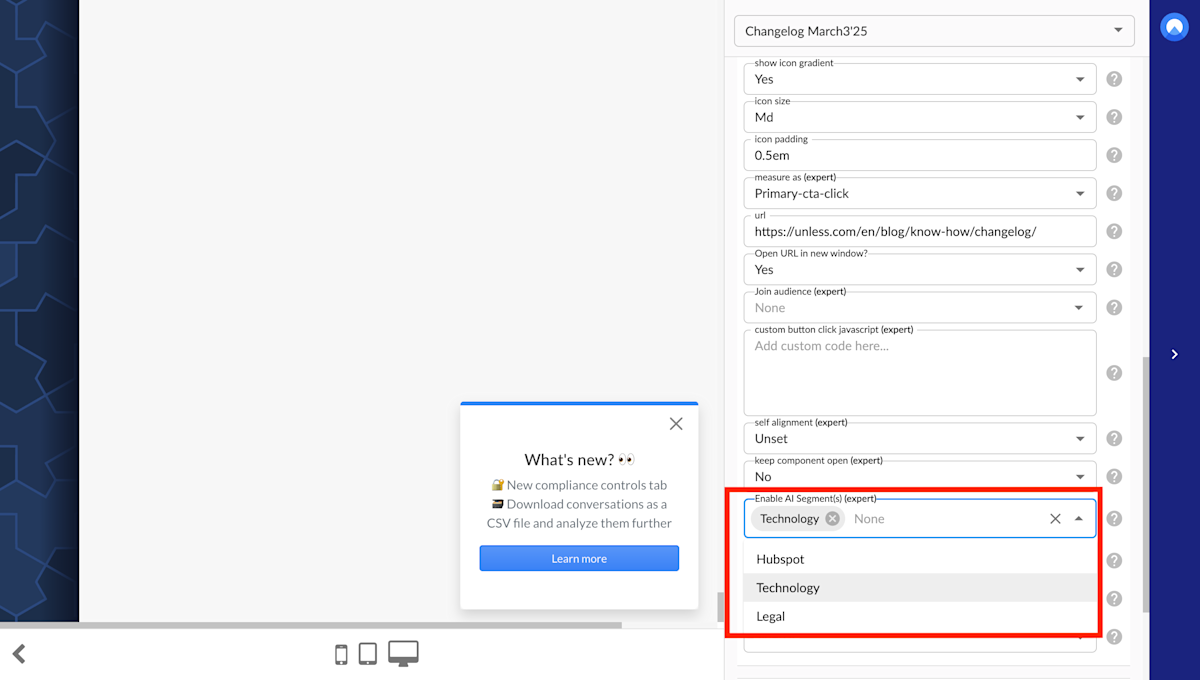
Enabling a topic via the component editor

If you select one topic here, that will directly be the topic that your end-users will be interacting with. If you select multiple topics, the end-user will first see the options and they can select one of the topics in which to have their conversation. You can think of this as similar to the self-segmentation feature we have for audiences.

Related content

We're here to help

Quick responses if you have an issue. Feel free to ask us anything — or ask our conversational AI a question.